
Install the SEOMER WordPress log plugin
Use the WordPress plugin when the user can access wp-admin but does not want to install a VPS agent manually. Download the ZIP, upload it to WordPress, activate it and paste the SEOMER gateway endpoint and ingest key.
The plugin connects WordPress to the same ingest pipeline as the VPS agent
In SEOMER, generate or copy the project gateway endpoint and ingest key. In WordPress, upload the plugin ZIP, activate it, open the plugin settings and paste those values. Enable access and error log delivery, then return to SEOMER to verify recent uploads.
WordPress plugin setup flow
Keep the flow simple: SEOMER provides the package and credentials; WordPress sends logs back to the project gateway.
Download ZIP
Open Logs & Security → Setup and download the plugin package.
Upload in wp-admin
Go to Plugins → Add New → Upload Plugin and install the ZIP.
Paste credentials
Add the gateway endpoint and active ingest key.
Check imports
Return to SEOMER and verify source health and recent uploads.
Configure the WordPress plugin
Use this guide for users who prefer wp-admin installation instead of a direct VPS command.
Step 1 — Download the plugin ZIP
Open the correct SEOMER project, go to Logs & Security → Setup and find the WordPress plugin card. Click Download ZIP and save the package on your computer.
- Use the project where the website belongs.
- Do not reuse a plugin configuration from another project.
- Keep the ingest key private.
None
- None
Step 2 — Upload and activate the plugin
In WordPress admin, open Plugins → Add New → Upload Plugin. Choose the ZIP file from your computer, install it and activate the plugin.
- None
WordPress admin → Plugins → Add New → Upload Plugin → Choose File → Install Now → ActivateNone
- None
Step 3 — Paste SEOMER connection settings
Open the plugin settings page and paste the gateway endpoint and active ingest key from SEOMER. Enable access logs and error logs if both are available, then save settings.
- None
Gateway endpoint
The API endpoint where the plugin sends log batches.
- None
Ingest key
The project-specific secret used to authorize uploads. Rotate the key if it is exposed.
- None
Access and error logs
Access logs power SEO, bot, heatmap and security reports. Error logs help identify server-side problems.
- None
Step 4 — Verify delivery in SEOMER
Return to Logs & Security → Setup or Imports. Check source status, latest upload time, file kind, inserted rows and parse warnings. The Imports page should show plugin/gateway source method when files arrive.
- None
None
- None
Troubleshooting
If nothing appears, confirm the project key, gateway endpoint, WordPress plugin activation, server permissions and whether the site is generating fresh requests. Rotate the ingest key only when you are ready to update plugin settings immediately.
- None
None
- None
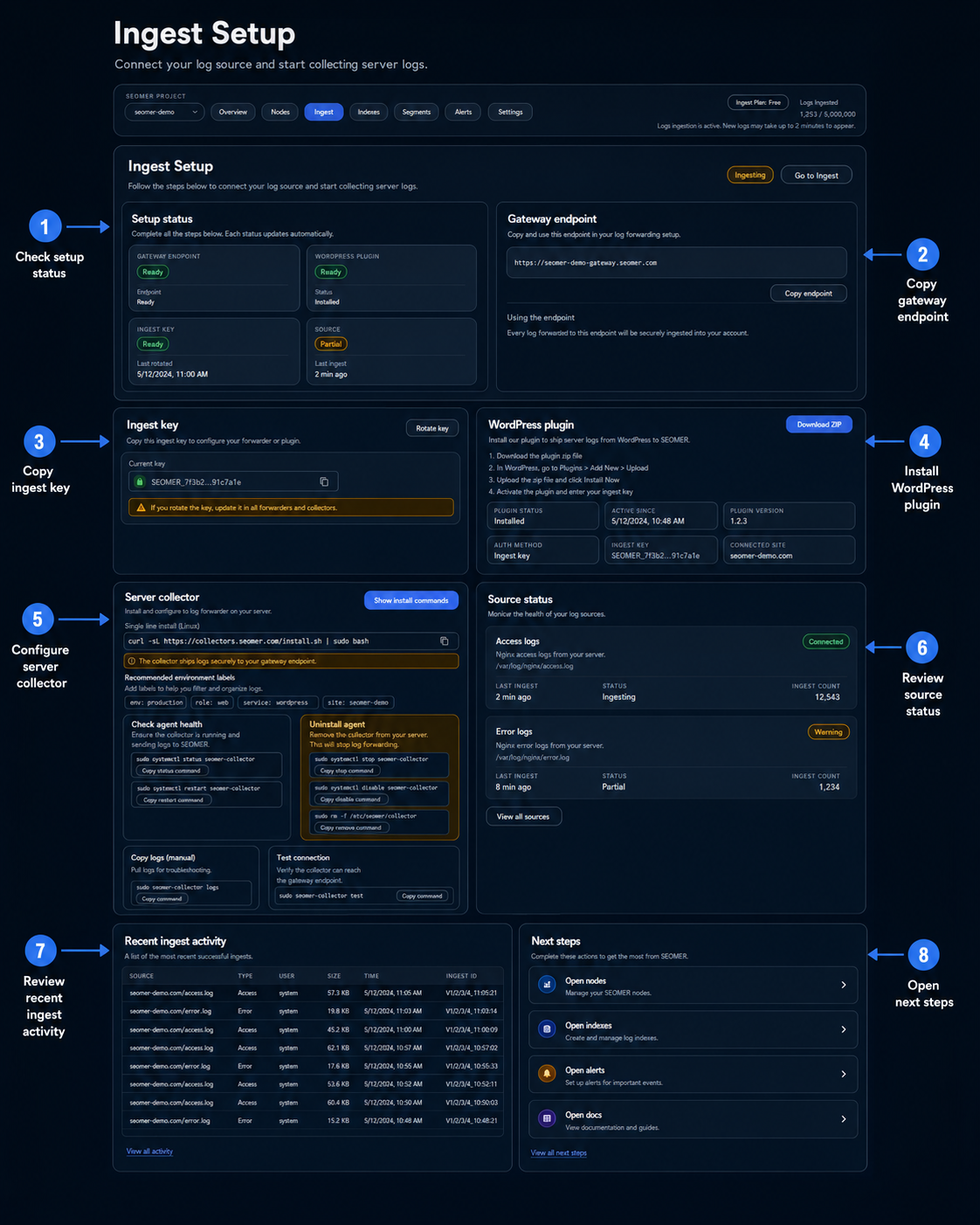
WordPress plugin setup inside SEOMER
The setup screen shows where users download the plugin ZIP, copy the gateway endpoint, copy the ingest key and confirm source status after activation.
This image covers the SEOMER-side plugin setup. A separate wp-admin screenshot can be added later if needed.
Do not expose the ingest key in screenshots
Before sharing WordPress screenshots, hide or blur the project ingest key. The docs can show the field and label without showing the real secret.
- Show field labels
- Hide real key
- Show Save button
Continue with log setup and verification
After plugin setup, users should verify imports and learn reports.
Server logs overview
Start here to understand sources, modes, imports, reports and security monitoring.
VPS agent setup
Install the Lightlogs agent on a VPS and safely detect Nginx access/error logs.
WordPress plugin setup
Install the plugin ZIP in WordPress and connect it to SEOMER with the gateway endpoint and ingest key.
Manual log uploads
Upload Nginx access or error files manually and check parsing, dedupe and storage usage.
Security log monitoring
Use realtime security monitoring every 5 minutes as a separate paid option.
Log reports
Read Live Overview, Bot & Visitor Journey, SEO Health, Heatmap and export packs.
Do I need server SSH access for the plugin? +
No. The plugin flow is designed for users who can install a plugin from WordPress admin.
Can I use the plugin and VPS agent together? +
Usually no. Use one source per project unless you intentionally need separate access/error streams and understand dedupe implications.
What should I do after rotating the ingest key? +
Immediately update the key in the WordPress plugin settings. Old plugin configs stop working after key rotation.
Where do I check if uploads arrived? +
Use Logs & Security → Setup for source health and Logs & Security → Imports for upload files, rows and parser status.
Connect WordPress without SSH
Install the plugin, paste the project credentials and verify that SEOMER receives fresh access/error logs.