
Read server log reports in SEOMER
Turn parsed access logs into practical reports for SEO crawl diagnostics, AI crawler visibility, suspicious traffic, HTTP errors, heatmaps, exports and action tasks.
Reports are only as good as the imported log source
Before using reports, confirm that source health is active and imports show parsed rows. Then use Live Overview for fresh snapshots, Bot & Visitor Journey for human/bot sessions, SEO Health for crawler diagnostics and Heatmap for hourly activity patterns.
Choose the right report
The Reports page is a command center. It links live views, SEO views, bot journey views and export packages.
Report center
Use the report center as the export desk and navigation hub. It can prepare AI JSON, AI pack, SEO pack, SEO Markdown and print/PDF output after data is prepared.
- None
None
- None
Live Overview
Live Overview reads the newest access-log upload by default. It shows delivery status, total requests, humans, bots, suspicious traffic, HTTP status distribution, top paths, top IPs, security noise and bot mix.
- None
None
- None
Bot & Visitor Journey
This report sessionizes actors and shows humans, search bots, AI crawlers, uptime checks and suspicious traffic. It includes filters for claimed Googlebot, verified Googlebot and fake/unverified Googlebot.
- None
None
- None
SEO Health
SEO Health focuses on crawl diagnostics: Googlebot activity, Googlebot errors, sitemap coverage, action tasks and Googlebot problem clusters.
- None
None
- None
Traffic Heatmap
Heatmap compares hourly activity for Googlebot and humans. It helps find crawler gaps, shared URLs, human-only URLs, Googlebot-only URLs and error patterns.
- None
None
- None
Exports and AI packs
Prepare an export package when you need to share log findings with a client, analyst or AI assistant. The generated package can include live overview, SEO health, heatmap and Googlebot data.
- None
None
- None
Logs Dashboard
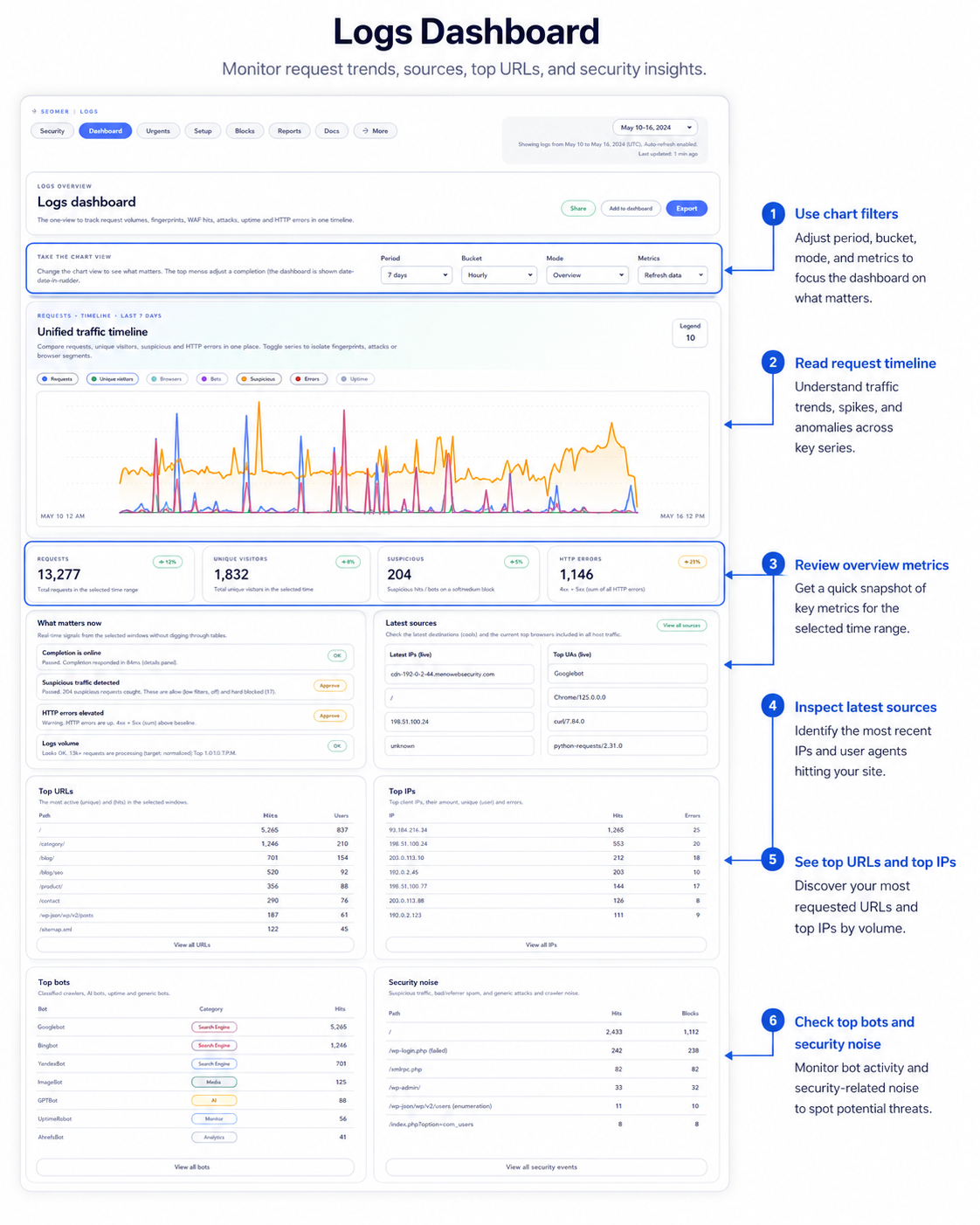
The dashboard combines chart filters, request timeline, overview metrics, latest sources, top URLs, top IPs, top bots and security noise in one report.
Use this as the main visual for the reports page because it explains the reporting hub at a glance.
Bot & Visitor Journey
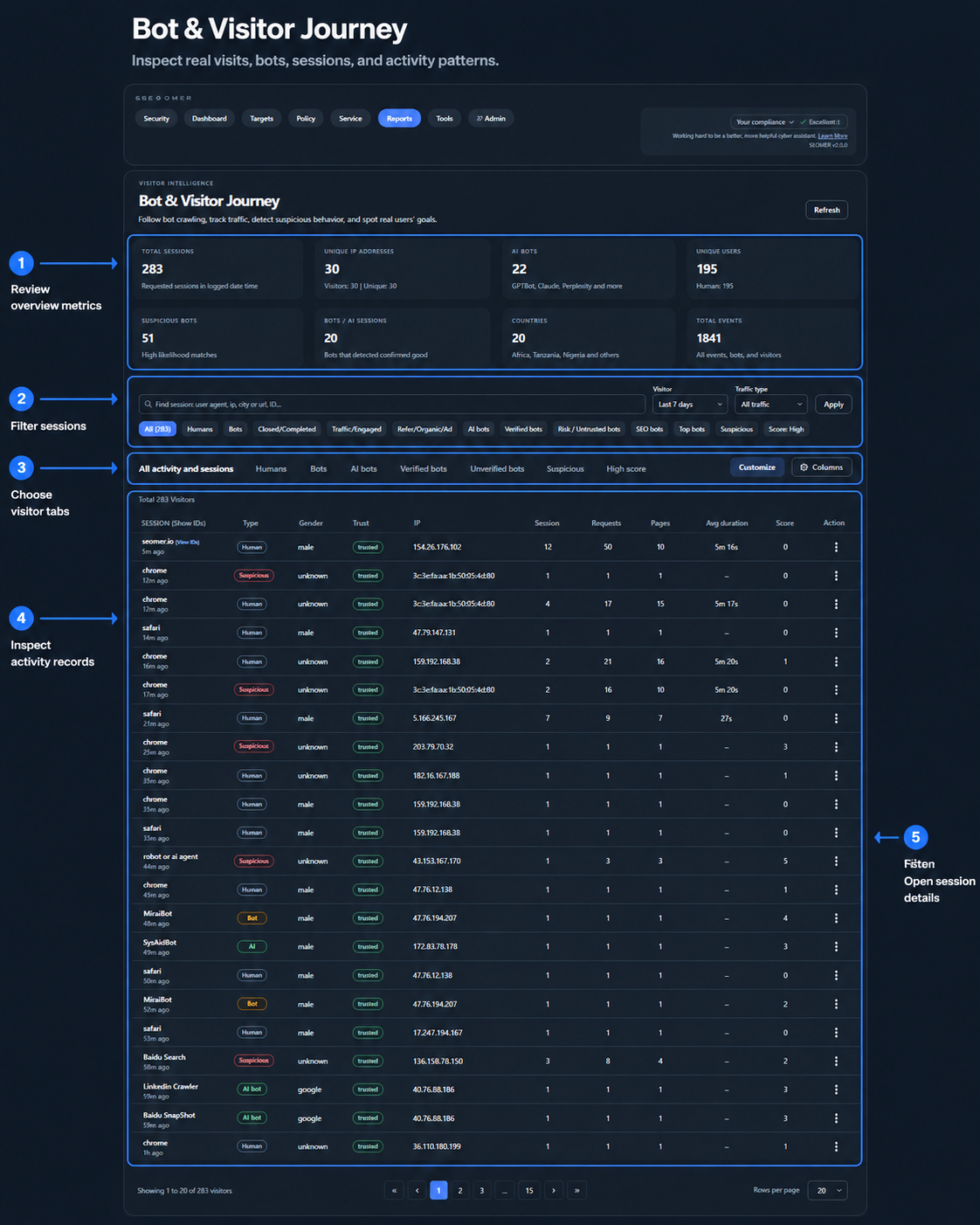
This report helps users filter sessions, compare humans, bots, AI bots, verified bots, suspicious traffic and open individual session details.
Bot verification is one of the strongest log features, especially when user-agent claims need to be checked against real crawler identity.
Traffic Heatmap
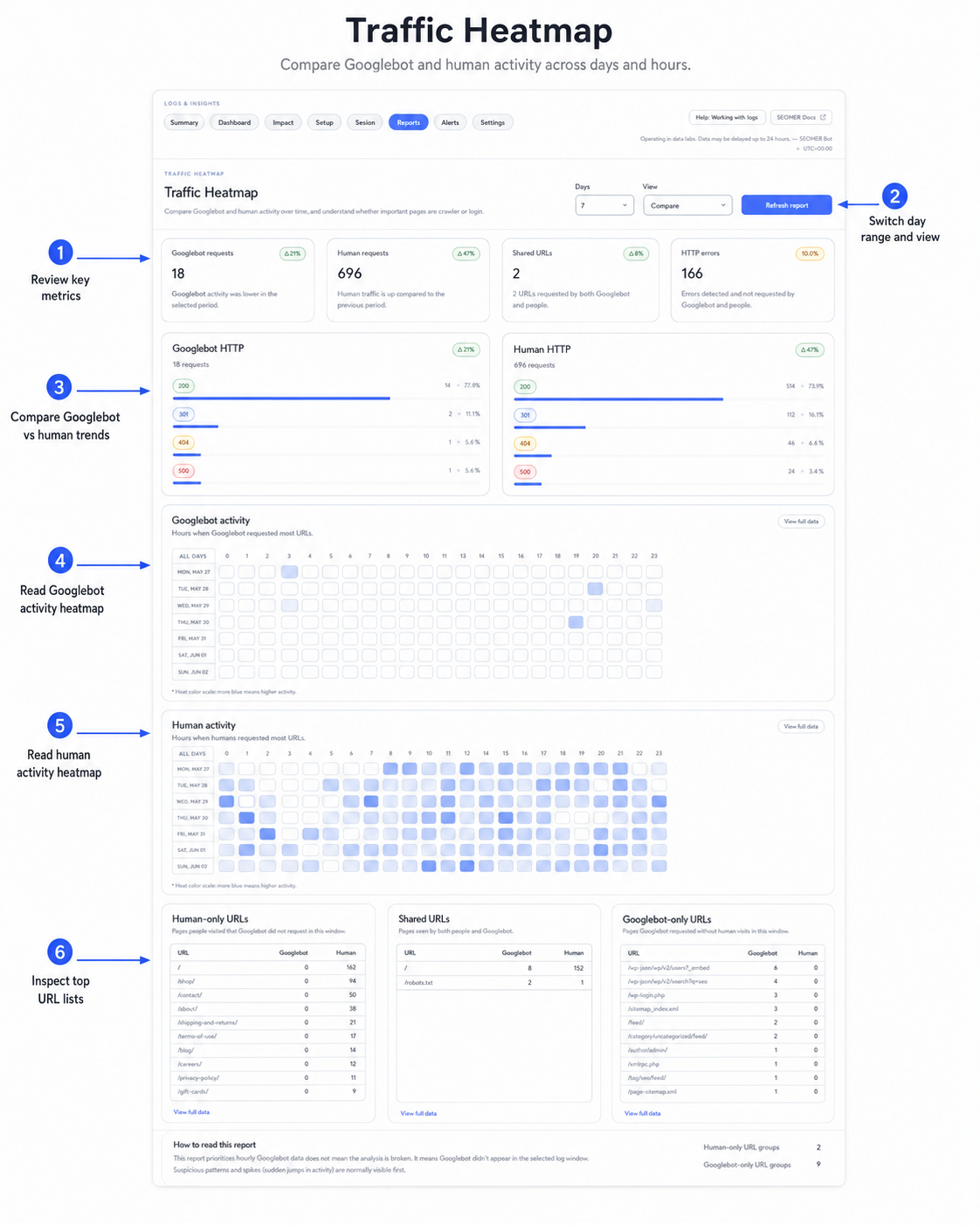
The heatmap compares Googlebot and human activity across days and hours, then separates human-only, shared and Googlebot-only URLs for faster crawl diagnostics.
Use this image when explaining how to find crawl gaps, human-only pages and Googlebot-only activity.
Entries table
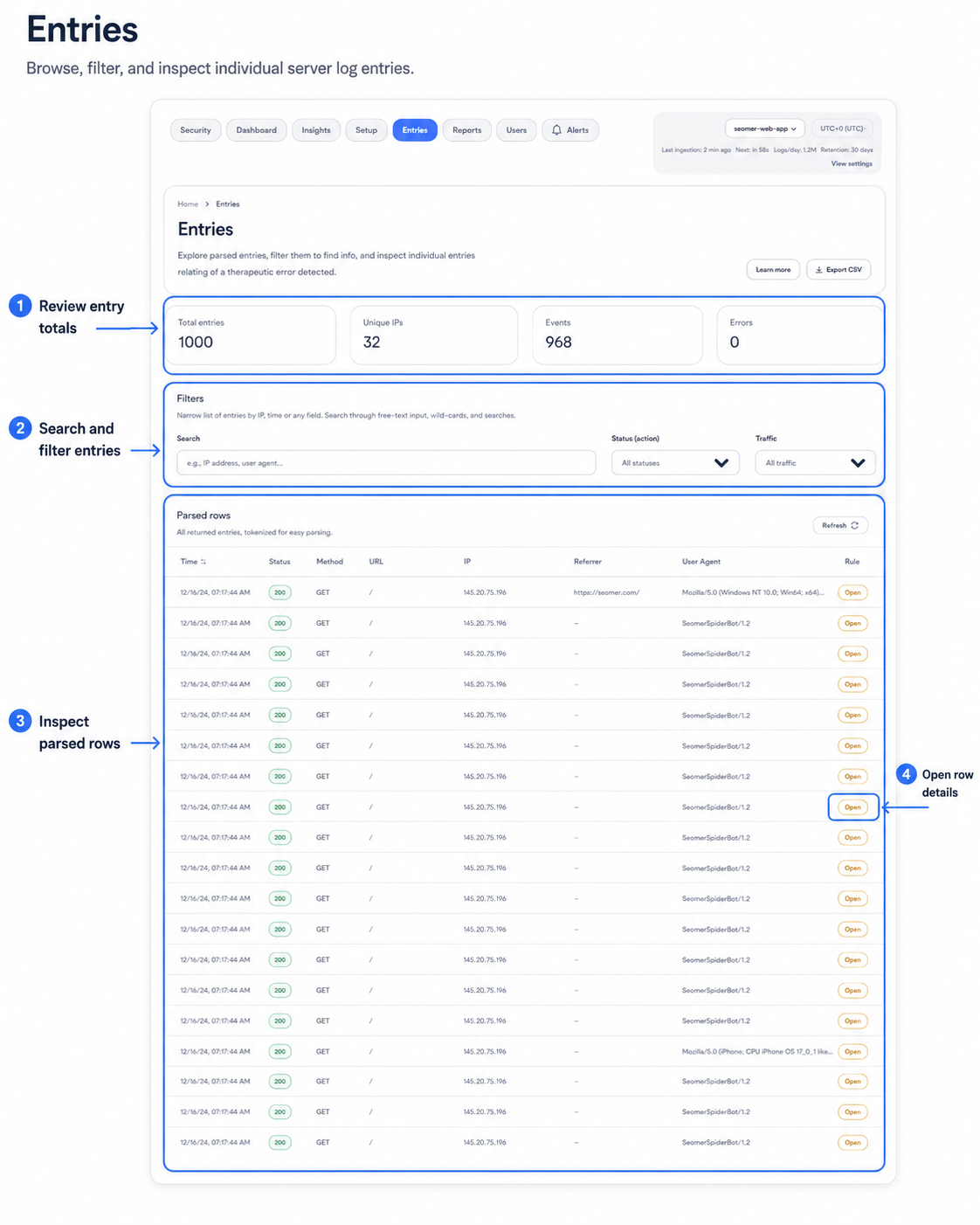
Entries lets users browse parsed log rows, search and filter requests, inspect status codes, methods, URLs, IPs, referrers, user agents and open row details.
Use Entries when a user needs raw, row-level evidence behind dashboard and report summaries.
Bot names are claims until verified
A user-agent that says Googlebot is not enough. SEOMER separates claimed, verified and fake/unverified crawler traffic where verification data is available.
- Claimed Googlebot
- Verified Googlebot
- Fake / unverified bots
Continue with setup, imports and security
Reports should link back to the source setup and security monitoring pages.
Server logs overview
Start here to understand sources, modes, imports, reports and security monitoring.
VPS agent setup
Install the Lightlogs agent on a VPS and safely detect Nginx access/error logs.
WordPress plugin setup
Install the plugin ZIP in WordPress and connect it to SEOMER with the gateway endpoint and ingest key.
Manual log uploads
Upload Nginx access or error files manually and check parsing, dedupe and storage usage.
Security log monitoring
Use realtime security monitoring every 5 minutes as a separate paid option.
Log reports
Read Live Overview, Bot & Visitor Journey, SEO Health, Heatmap and export packs.
Why is Googlebot empty in a selected period? +
That can be normal. Google crawls in waves. Check a longer window or compare with Google Search Console crawl stats.
Why can manual Googlebot claims be fake? +
Any request can send a Googlebot-like user-agent. Verification checks DNS/IP evidence where supported.
Which report should I open first? +
Start with Live Overview to verify fresh data, then use Bot & Visitor Journey or SEO Health depending on your task.
Can reports use manually uploaded logs? +
Yes, if the file was parsed into log entries.
What should I export for an SEO review? +
Use SEO pack or SEO Markdown after preparing the export in Report Center.
Turn parsed logs into decisions
Use reports to find crawler errors, AI bot visits, suspicious requests, sitemap gaps and URLs that deserve SEO or security action.