
Upload server logs manually
Use manual uploads for historical analysis, one-off testing or when a VPS agent or WordPress plugin is not connected yet.
Manual upload uses the same parsing and dedupe pipeline
Drop or choose a log file on the Imports page. SEOMER stores the file, queues parsing, detects exact duplicates or overlaps, counts inserted/skipped/malformed rows and makes the data available in Entries and Reports.
Upload and verify log files
Manual uploads are simple, but users still need to choose the right log kind and verify parsing quality.
When to use manual upload
Manual upload is useful for first testing, migration analysis, old log files, support requests and projects where a live collector has not been installed yet.
- None
None
- None
Supported files and log kinds
SEOMER parses Nginx access logs and Nginx error logs. The parser can read normal text streams and gzip-compressed files. Choose the correct log kind before upload so reports interpret rows correctly.
- Access logs: request URL, method, status, size, referrer and user-agent
- Error logs: Nginx error lines converted into diagnostic entries
- Gzip files: useful for rotated logs and smaller transfers
- Avoid mixed multi-site logs unless the source can be safely filtered by host
None
- None
Upload steps
Open Logs & Security → Imports, use Upload logs, choose a file, select access or error kind if the UI asks, then wait until parsing finishes.
- None
Logs & Security → Imports → Upload logs → Choose file → Wait for queued/parsing/parsed statusNone
- None
How to read import status
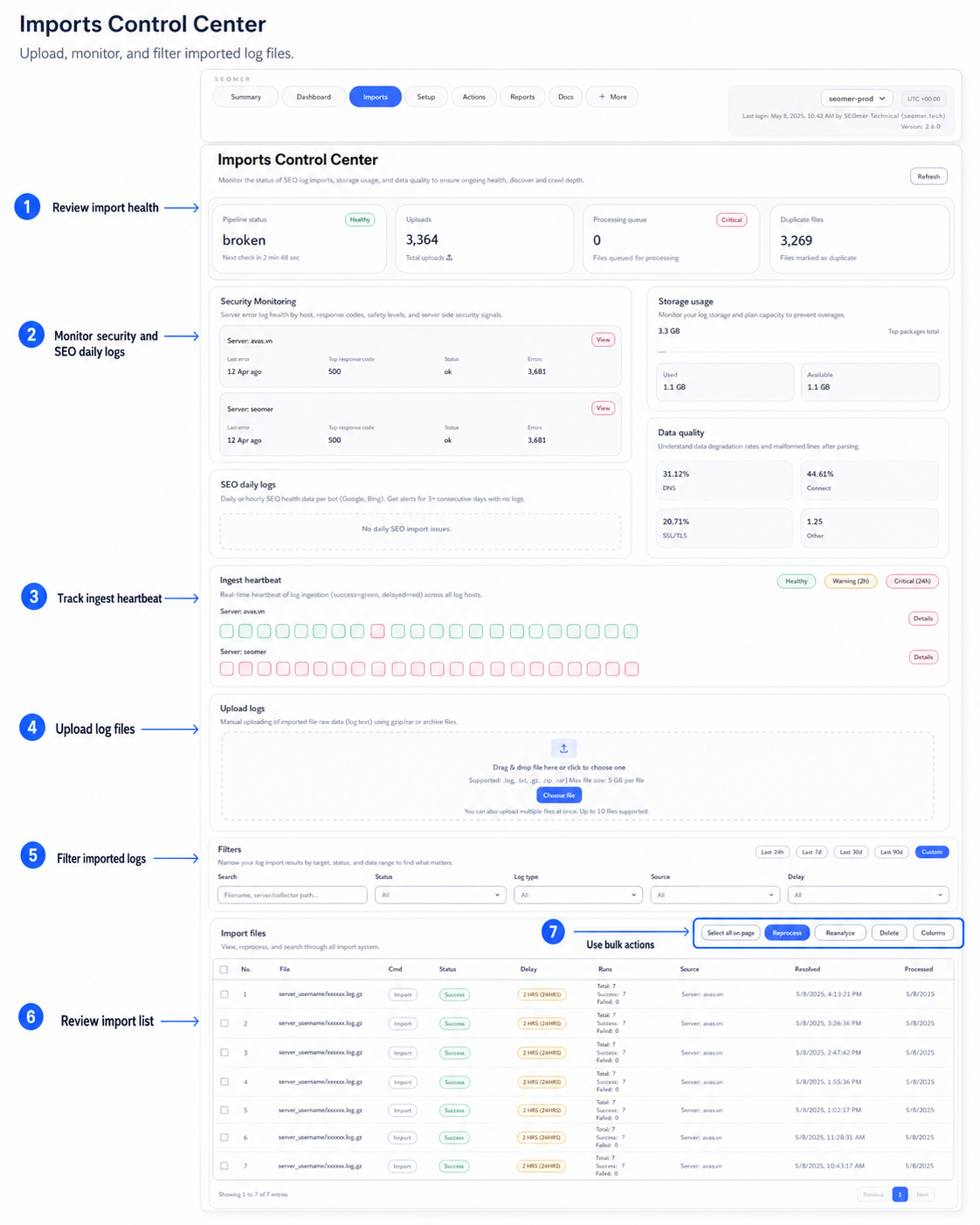
The Imports Control Center shows pipeline status, recent uploads, processing queue, duplicates, storage usage, data quality and file table. These counters tell whether the file is actually usable.
- None
Storage usage
Shows raw, compressed and used storage against the project/package limit.
- None
Data quality
Shows total rows, inserted rows, duplicate rows and malformed lines.
- None
File table
Shows source, kind, status, dedupe state, rows, received/processed time and actions.
- None
What to do after upload
Open Entries for raw row inspection, Live Overview for a current snapshot, Bot & Visitor Journey for actor/session analysis, SEO Health for crawler diagnostics or Heatmap for hourly patterns.
- None
None
- None
Imports Control Center
Use Imports to monitor pipeline health, security and SEO daily logs, ingest heartbeat, manual uploads, filters, imported files and bulk actions.
This image helps users understand whether files were uploaded, parsed, delayed, duplicated or queued for reprocessing.
Manual upload is not realtime monitoring
Manual files are great for testing and historical analysis, but they do not replace SEO daily collection or realtime security monitoring.
- Manual = one-off files
- SEO daily = scheduled collection
- Security = 5-minute realtime option
Continue after manual upload
Once a file is parsed, use Entries and Reports to analyze it.
Server logs overview
Start here to understand sources, modes, imports, reports and security monitoring.
VPS agent setup
Install the Lightlogs agent on a VPS and safely detect Nginx access/error logs.
WordPress plugin setup
Install the plugin ZIP in WordPress and connect it to SEOMER with the gateway endpoint and ingest key.
Manual log uploads
Upload Nginx access or error files manually and check parsing, dedupe and storage usage.
Security log monitoring
Use realtime security monitoring every 5 minutes as a separate paid option.
Log reports
Read Live Overview, Bot & Visitor Journey, SEO Health, Heatmap and export packs.
Can I upload gzip logs? +
Yes. The parser can auto-detect gzip streams, which is useful for rotated Nginx log files.
What does duplicate mean? +
SEOMER detects exact duplicate files and partial overlaps so repeated uploads do not inflate reports.
Why do malformed rows appear? +
Malformed rows usually mean the file format does not match the expected Nginx access/error format or contains unrelated lines.
Can manual uploads power reports? +
Yes. Once parsed, uploaded rows can be used by Entries, Live Overview, SEO Health, Heatmap and journey reports.
Upload, parse and verify before analysis
A successful import should show parsed status, inserted rows and reasonable duplicate/malformed counters before you trust reports.