
Connect VPS server logs to SEOMER
Install the Lightlogs agent, detect safe Nginx access/error log paths and send clean project-specific logs into SEOMER without mixing several websites into one report.
Use the VPS agent when the site runs on a server you control
The VPS agent is the cleanest setup for Nginx logs. Generate an install command in SEOMER, run it over SSH on the correct VPS, then verify source health and recent uploads in the Setup and Imports pages.
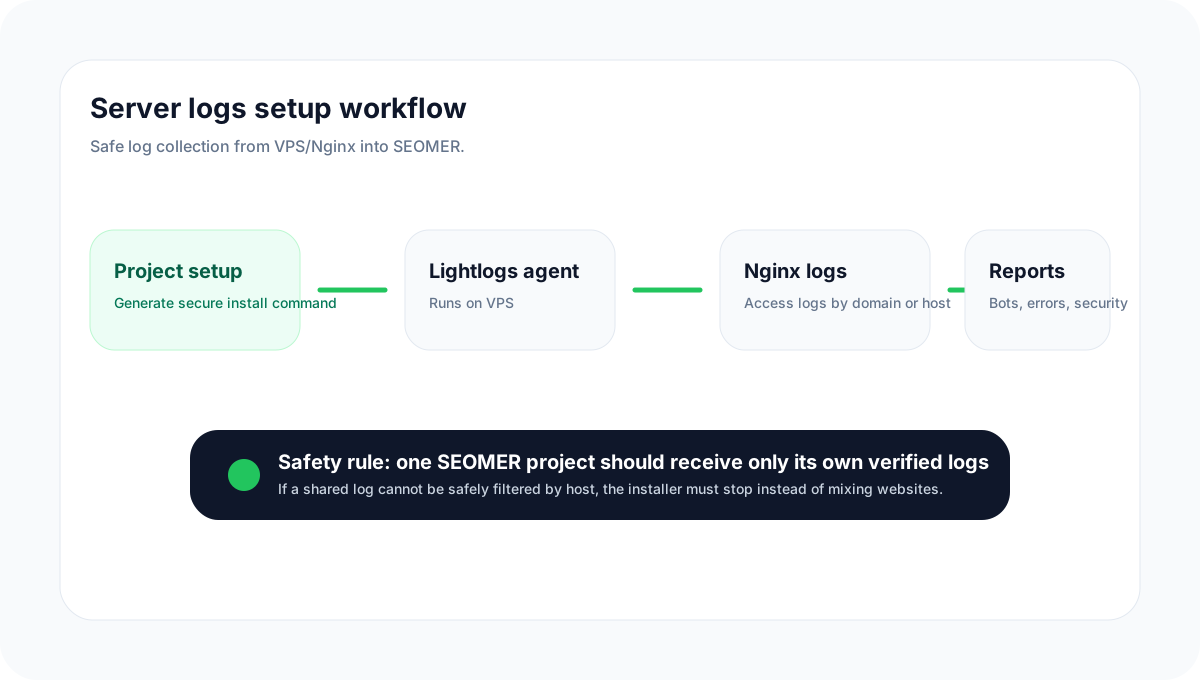
VPS source workflow
The agent sends deltas from access and error logs to the gateway, where SEOMER deduplicates, parses and routes data to reports.
Concept diagram; replace with an app screenshot after the setup UI is polished.
Install and verify the Lightlogs VPS agent
Follow this when the project runs on a VPS with Nginx access/error logs.
Who can install the agent
Only workspace owners and admins should generate install commands, rotate ingest keys or remove server sources. The command contains a project-specific token/key and changes the server collector configuration.
- Use the correct workspace and project before generating the command.
- Do not paste the command into a different server.
- Do not share generated commands in tickets or screenshots.
None
- None
Generate the install command
Open the project, go to Logs & Security → Setup, then use the Server collector card. Generate a one-command install and copy it.
- None
Project → Logs & Security → Setup → Server collector → Generate install commandNone
- None
How safe Nginx source detection works
On a single-site VPS, the default access log may be enough. On a multi-site VPS, the agent must use a separate domain access log or a shared log format that includes the hostname. If SEOMER cannot safely separate domains, setup should stop instead of sending mixed data.
- None
Best setup
Each Nginx server block writes to its own access and error log.
- None
access_log /var/log/nginx/example.com.access.log;
error_log  /var/log/nginx/example.com.error.log warn;
Acceptable fallback
A shared log includes $host or another hostname field, so the collector can filter requests for the project domain.
- None
Unsafe setup
A shared /var/log/nginx/access.log without hostname on a VPS that hosts several websites. This should be fixed in Nginx before connecting SEOMER.
- None
Run the command over SSH
SSH into the VPS that hosts the site and paste the generated command. On servers that already have the Lightlogs agent, the command should update or add the project as a separate source instead of creating a second service.
- None
ssh root@example-server
# paste the generated SEOMER install command
None
- None
Verify source health
Return to SEOMER and check Source status and Recent ingest activity. Access and error sources should show last received timestamps. You can also use server-side diagnostics.
- None
sudo systemctl status lightlogs-agent.service
sudo /opt/lightlogs/doctor.sh
sudo journalctl -u lightlogs-agent.service --no-pager -n 100
None
- None
Remove one source or uninstall the agent
On multi-site VPS servers, remove only the project source when possible. Full uninstall should be used only when the VPS should stop sending all Lightlogs sources.
- None
sudo /opt/lightlogs/remove-source.sh <project_id>

sudo /opt/lightlogs/uninstall.sh
None
- None
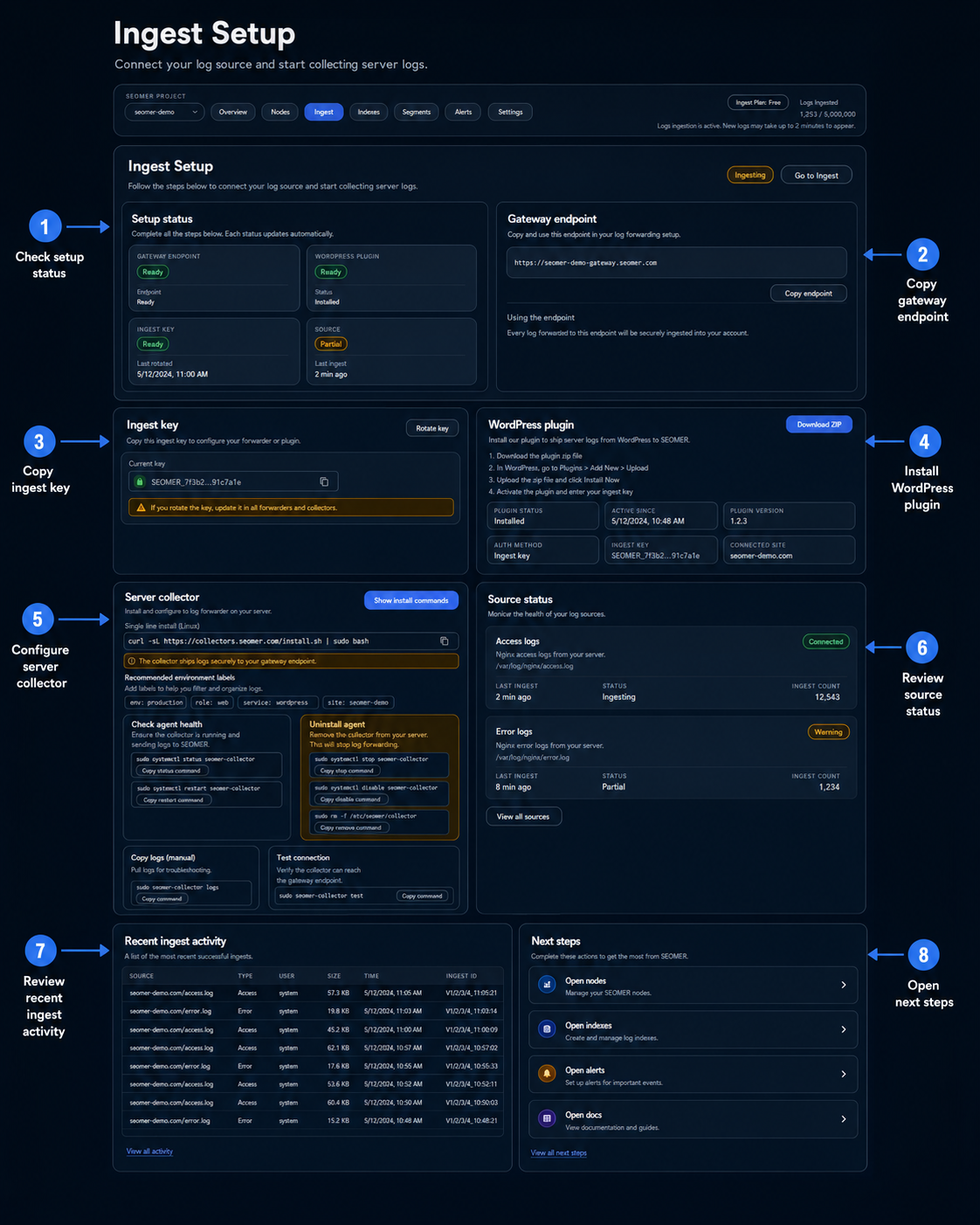
Ingest Setup: gateway, ingest key, plugin and collector
This guide image shows the full setup flow: status cards, gateway endpoint, ingest key, WordPress plugin, server collector commands, source status and recent ingest activity.
Use this image on the VPS and setup pages to explain where users copy the endpoint, key and collector commands.
Never connect mixed logs to one project
If a shared log contains requests from several domains and no hostname, reports become unreliable. Fix Nginx logging first or use a project-specific log file.
- Best: separate access_log per domain
- Safe: shared log with hostname
- Unsafe: shared log without hostname
Continue with related log guides
After the VPS source is connected, verify imports and open reports.
Server logs overview
Start here to understand sources, modes, imports, reports and security monitoring.
VPS agent setup
Install the Lightlogs agent on a VPS and safely detect Nginx access/error logs.
WordPress plugin setup
Install the plugin ZIP in WordPress and connect it to SEOMER with the gateway endpoint and ingest key.
Manual log uploads
Upload Nginx access or error files manually and check parsing, dedupe and storage usage.
Security log monitoring
Use realtime security monitoring every 5 minutes as a separate paid option.
Log reports
Read Live Overview, Bot & Visitor Journey, SEO Health, Heatmap and export packs.
Do I need root access? +
You need enough permissions to install the agent, read Nginx logs and manage the systemd service.
Can one VPS host several SEOMER projects? +
Yes. The agent is multi-site ready and should store each project as a separate source.
What if auto-detection cannot find the right log? +
Use custom log paths only when you know the correct Nginx files. Otherwise fix Nginx logging first.
Does the agent delete Nginx logs? +
No. The collector reads log deltas and sends them to SEOMER; it should not delete Nginx log files.
Verify the source before reading reports
Once the agent is installed, check source health, recent uploads, inserted rows and duplicate status before trusting reports.