
How to set up SERP monitoring in SEOMER
Configure keyword tracking, search depth, schedules, workspace quota and token-based SERP checks without accidentally overspending on unnecessary checks.
SERP monitoring tracks how your target pages rank for selected keywords
Standard monitoring is designed for scheduled ranking checks and uses workspace included quota first. Live SERP checks are manual instant checks and always use tokens. Priority checks are reserved for faster backlink and indexation workflows.
SERP monitoring workflow
The SERP module connects keywords, depth, billing preview, scheduled or Live checks, result history, alerts and reports.
Use screenshots only for exact UI actions. Use diagrams for long-lived concepts like quota, tokens and result flow.
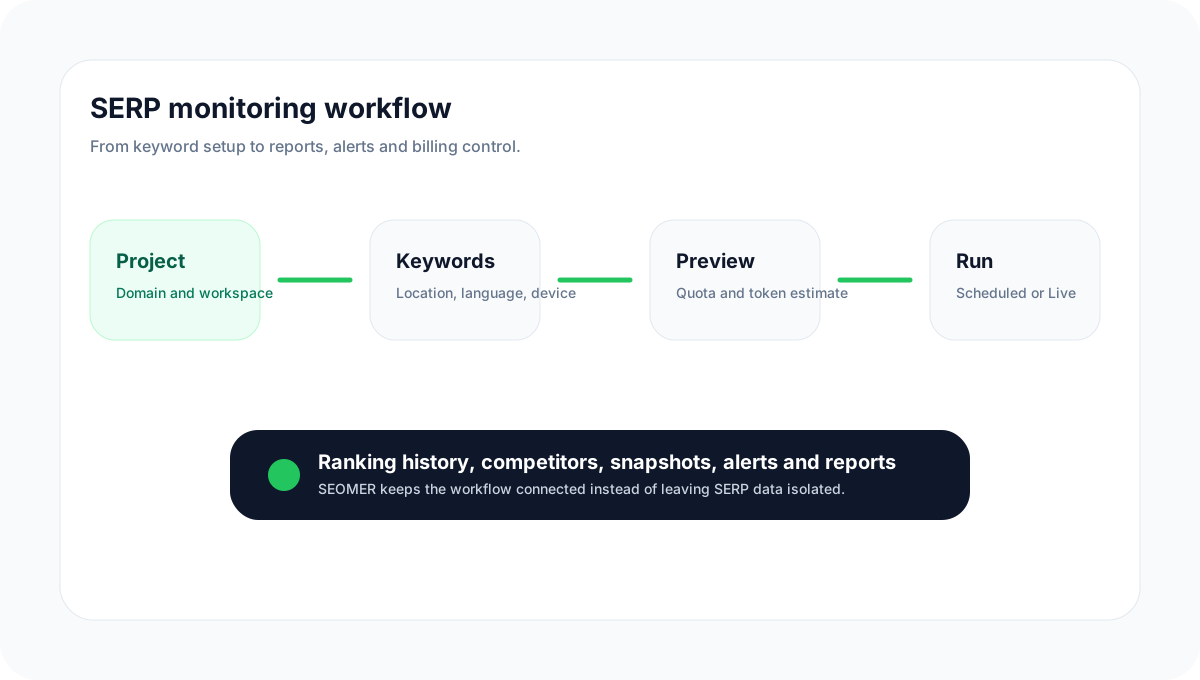
Configure SERP monitoring step by step
Use this flow for both regular rank tracking and manual checks. Start small, validate the billing preview, then expand keyword coverage.
What SERP monitoring does
SERP monitoring helps you track how selected pages rank in Google search results for specific keywords. SEOMER can monitor positions by project, keyword, country, language, device and search depth.
- None
Standard monitoring
Use Standard monitoring for recurring checks. It is the default mode for scheduled ranking history and uses workspace included quota before token overage.
- None
Live SERP checks
Use Live checks when you need an immediate result. Live checks are manual, instant and always token-based.
- None
Priority checks
Priority mode is mainly for backlink and indexation flows, for example checking whether donor pages or source URLs appear in Google through SERP-based verification.
- None
Before you start
Prepare the project domain, target keywords, target URLs, country, language, device, depth and expected check frequency. Workspace owners or admins should also verify that the workspace has available quota or tokens.
- Use the correct workspace and project.
- Group keywords by page, topic or campaign.
- Decide whether the check should be scheduled or Live.
- Use billing preview before saving frequent schedules.
None
- None
Step 1 — Add keywords
Add keywords one per line or import them from a prepared list. Keep keywords clean and avoid unnecessary punctuation. For Standard monitoring, include the target domain or target URL so SEOMER can detect matching results correctly.
- None
technical seo monitoring
backlink monitoring tool
server log analysis for SEO
googlebot log monitoring
None
- None
Step 2 — Choose SERP depth
Depth controls how many Google result positions are checked. Depth 10 checks the first page. Higher depth values can find lower-ranking pages, but they process more SERP pages and can cost more.
- None
Recommended default
Start with depth 10 or 20 for important keywords. Use depth 50 or 100 only for discovery, new pages or competitor analysis.
- None
Stop on target found
When stop-on-match is enabled, SEOMER can stop once the target domain is found. The system may reserve the maximum cost first, then charge or release based on the actual processed pages.
- None
Step 3 — Configure the monitoring schedule
Daily Standard monitoring is the safest default for most projects. Frequent checks can be useful for money pages, launches or volatile keywords, but they consume included quota faster and may move into token usage after the workspace limit is exhausted.
- Daily: best default for regular SEO tracking.
- Weekly: useful for low-priority or long-tail keywords.
- Every N hours: use only for important keywords with clear billing awareness.
None
- None
Step 4 — Review billing preview
Before running or saving SERP checks, review the estimated charge, allowed/blocked status, balance after estimate and warnings. Standard checks use included workspace quota first. Live checks always use tokens.
- None
Included quota
Included Standard SERP quota is workspace-level, not project-level. Several projects can consume the same workspace pool.
- None
Token overage
After included quota is exhausted, Standard monitoring can continue with tokens if the workspace has enough balance.
- None
Live checks
Live SERP checks are instant and token-based. They should be used for manual investigations, not as a replacement for scheduled monitoring.
- None
How to read SERP results
After a check finishes, review the keyword, position, target domain, matched URL, status, last checked time and available snapshots. If Google ranks a different URL than expected, investigate internal linking, cannibalization or page relevance.
- Position shows where the matched result appeared.
- Matched URL shows which page Google actually ranked.
- Competitor results help compare content formats and search intent.
- HTML or screenshot snapshots provide extra evidence when enabled.
None
- None
Common setup mistakes
Most SERP setup problems come from tracking too much, too deeply or too often before understanding quota impact.
- Do not start with hundreds of keywords on frequent schedules.
- Do not use depth 100 for every keyword by default.
- Do not confuse Standard monitoring with Live checks.
- Do not ignore quota and token warnings in the billing preview.
None
- None
Standard SERP monitoring setup
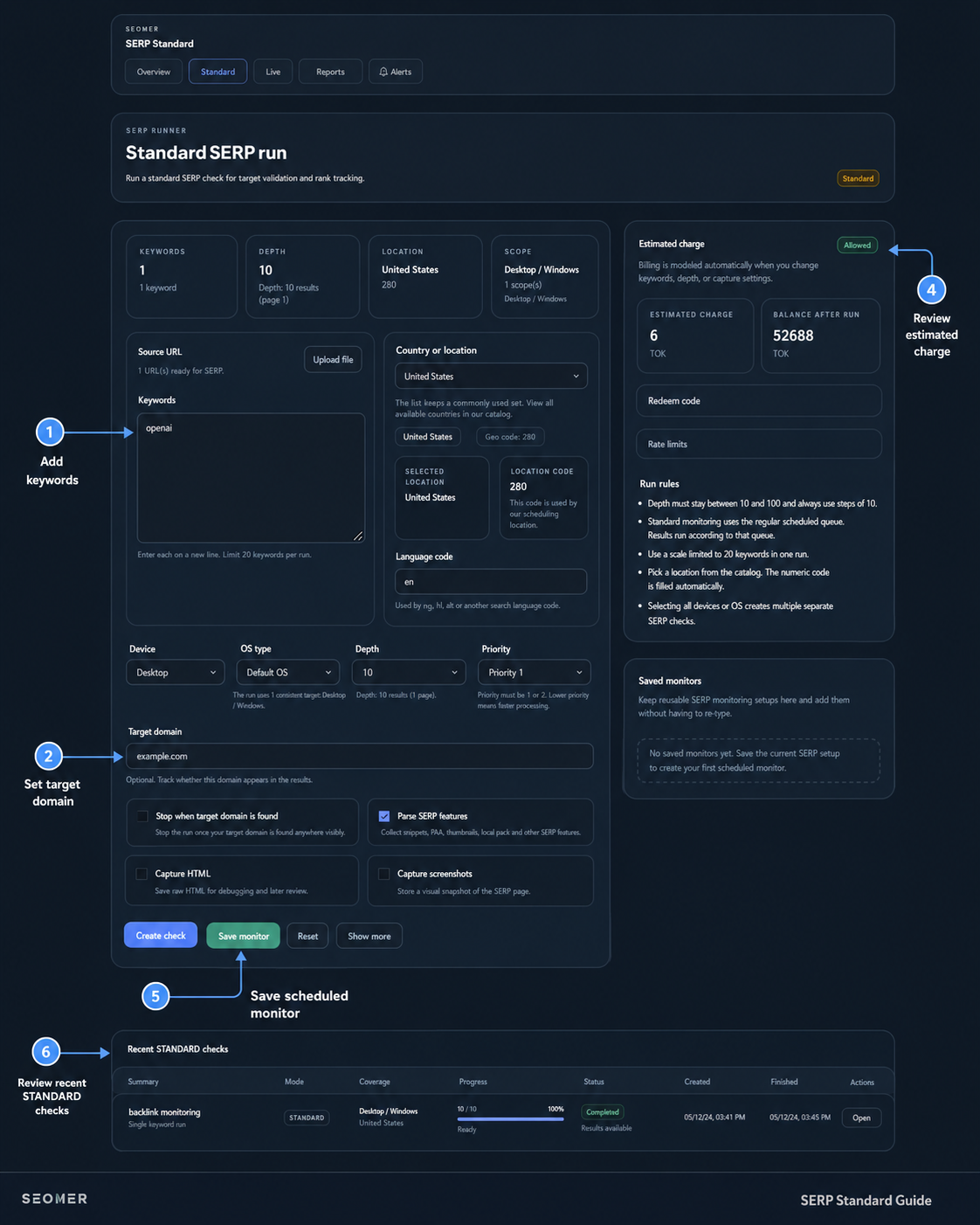
Use Standard SERP for scheduled rank tracking. Add keywords, set the target domain, choose device and depth, review the estimated charge and save the setup as a scheduled monitor.
Standard checks are designed for recurring monitoring. Review the estimate before saving frequent schedules.
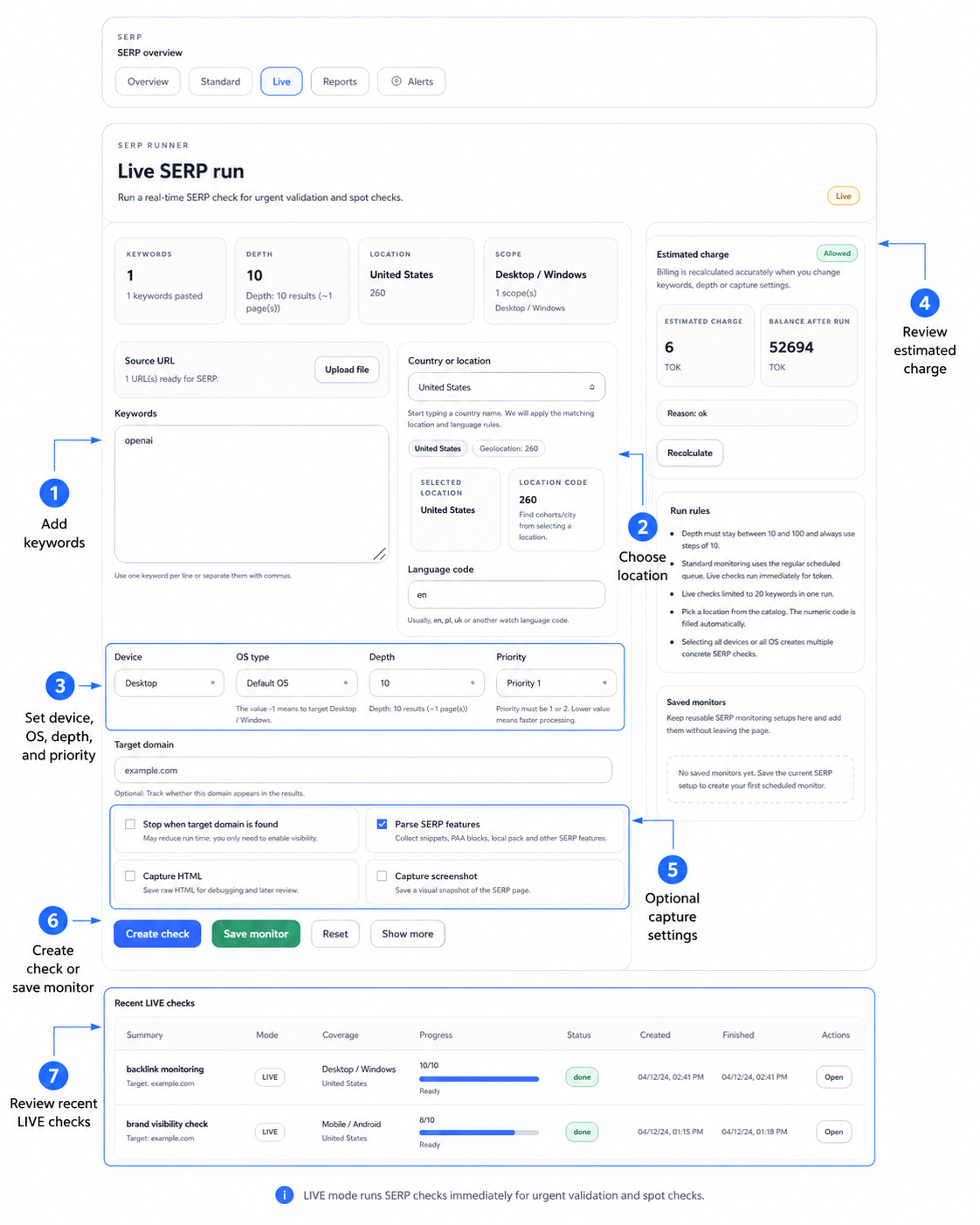
Live SERP check setup
Use Live SERP when you need an immediate spot check. The screen highlights keyword input, location, depth, capture options, estimated charge and recent Live checks.
Live checks run immediately and always use tokens, so the estimated charge card should be reviewed before running.
Do not enable frequent monitoring without checking the preview
A small keyword list can become expensive if it runs every few hours at high depth. Start with daily checks, confirm actual usage, then increase frequency for high-value keywords only.
- Use depth 10 or 20 first
- Enable stop-on-match when possible
- Reserve Live checks for manual investigations
Continue with related SERP documentation
These links create the SERP cluster and guide the user to the next logical step.
Server logs on VPS
Connect server logs and compare crawl behavior with ranking movements.
Billing and tokens
Understand workspace quota, token overage and SERP billing previews.
SERP reports
Read ranking history, matched URLs, snapshots and competitors.
Backlink indexation checks
Use Priority SERP checks for donor page and backlink indexation workflows.
SERP monitoring FAQ
The short answers users usually need before running their first SERP checks.
Open SEOMER app →Does SERP monitoring use my included quota first? +
Standard scheduled SERP monitoring uses the workspace included quota first. After the quota is exhausted, checks can continue using tokens if the workspace has enough balance.
Are Live SERP checks included in my plan? +
No. Live SERP checks are instant manual checks and always use tokens.
Can I monitor rankings more than once per day? +
Yes. SEOMER can support frequent schedules, but frequent monitoring consumes quota faster and may require tokens after the included quota is exhausted.
What is SERP depth? +
SERP depth is the number of search result positions SEOMER checks for a keyword. Depth 10 checks the first page. Higher depth values check more results and may cost more.
What does stop-on-match mean? +
Stop-on-match allows SEOMER to stop checking deeper result pages once the target URL or domain is found. This can reduce actual processed pages.
Why are my manual Google results different? +
Google results can vary by country, language, device, personalization, location, data center and time. SEOMER uses configured search settings to make checks more consistent.
Set up SERP monitoring with quota and token control
Track keyword positions, review billing impact before checks run and connect SERP data with reports, alerts and backlink indexation workflows.